Review the following configuration considerations when installing and configuring ExtremeCloud IQ Site Engine's Policy tab.
- General Considerations
- C1 Considerations
- N-Series Considerations
- C2 and B2 Considerations
- C3 and B3 Considerations
- Mixed-Stack C2/C3 and B2/B3 Considerations
- 7100 Considerations
- ExtremeControl Controller Configuration
- Wireless Controller Configuration
General Considerations
Authenticating without Policy
This section discusses how authentication works in a network where end users must authenticate, but there are no roles (policy) for authenticated users defined on the network devices.
The following table shows Authentication Behavior for each device type when the authenticated role is not defined on the device:
| Authentication Type |
K-Series, S-Series, N-Series Gold and Platinum |
E6/E7 |
|
|
|
|---|---|---|---|---|---|
| 802.1X | Successful | Successful | Successful | Successful | Successful |
| MAC | Successful | Successful | Successful | Successful | Successful |
| Web-Based | Successful | Successful on firmware version 5.06.x. Failed on older firmware versions. |
Successful | Successful |
The following table shows Authenticated Traffic Behavior for each device type when the authenticated role is not defined on the device:
| Authentication Type |
N-Series Gold and Platinum 4.11 and earlier |
K-Series, S-Series, N-Series 5.01 and later Gold and Platinum |
|
|
|
|
|---|---|---|---|---|---|---|
| 802.1X | 1 | 3 | 2 | 2 | 3 | 2 |
| MAC | 1 | 3 | 2 | 2 | 3 | 2 |
| Web-Based | 1 | 3 | 2 | 2 | 2 |
1 - Traffic is forwarded based on the 802.1Q PVID and 802.1p priority for the port, regardless of whether the port has been assigned a default role. Authenticated users display a current role of "None" in the Port Usage tab.
2 - Traffic is forwarded based on the port's default role and authenticated users will display the default role as their current role in the Port Usage tab. If no default role has been assigned to the port, the port's 802.1Q PVID and 802.1p priority are used, and the current role will be "None."
3 - Traffic is forwarded based on the Invalid Role Action configuration at the device level in the Policy tab.
Terminating Role Override Sessions
On Port Usage tabs, you cannot terminate Role Override (IP) or Role Override (MAC) sessions created through the CLI (command line interface).
Port-Level MAC to Role Mappings
Enforcing port-level MAC to Role mappings could potentially remove rules as an intrusion detection response.
Import From Device
If you perform a Verify operation following an Import Policy Configuration from Device, the Verify can fail. This is because the import operation imports only roles and rules from the device, not the complete policy configuration.
Also, if you import from more than one device and the configuration is not the same on each device, Verify fails. This is because the imported configuration will not match the configuration on any one device.
Flood Control
Individual Class of Service granularity is unsupported on fixed switches, so if any CoS is assigned a Flood Control rate, all Class of Service on these devices use that rate.
C1 Considerations
Review the following considerations prior to configuring policy on C1 devices:
Policy Support
Policy support on C1 devices utilizes both a port-level role and a device-level role. In the Policy tab, a role is a set of network access services made up of traffic classification rules. It can also contain default Access Control (VLAN) and/or Class of Service settings applied to traffic not handled specifically by the rules contained in the role. Although both the device-level and port-level roles can contain all of these components, only certain portions of each role are used when applied to a port on a C1 device.
On the C1, classification rules are implemented at the device level through a device-level role. The Policy tab enables you to set a unique device-level role for each C1 device. The device-level role is a regular role that defines how inbound traffic is handled in terms of classification rules and default Class of Service assignment. In other words, all classification rules are taken from the device-level role, and any rules defined in the port-level role are ignored when applied to a port. The Class of Service setting is also implemented through the device-level role and ignored in the port-level role. However, the default Access Control setting of the device-level role is ignored, and is defined through the port-level role.
Classification rules from the device-level role are only applied to ports which also have a port-level role applied (either statically or dynamically). This enables you to exclude the device-level role from uplink ports and hosts ports, by not applying a port-level role to these ports and not enabling authentication on them.
When a port-level role is applied to a port, it overrides any PVID and Class of Service settings defined on the port through Console or local management. When a device-level role is applied to a port, it also overrides these PVID and Class of Service settings, and overrides any Class of Service setting defined in the port-level role. It does not override any default Access Control setting defined in the port-level role.
In addition, if the port-level role's default Access Control is configured to deny traffic, then all inbound traffic will be discarded even if it matches a (forward) classification rule.
Rule Limits
C1 devices limit the number of rules you can create for some classification types. Refer to the C1 information in the ExtremeCloud IQ Site Engine Release Notes to see which classification types limit the number of rules.
N-Series Considerations
Review the following considerations prior to configuring policy on N-Series devices:
Role Precedence for the N-Series Platinum
The following precedence determines the role (policy) that is being applied on a user/port on a N-Series Platinum device. The precedence used depends on whether the device is configured for multi-user authentication or single user authentication.
Multi-User Authentication:
Devices configured with multi-user authentication use the
following precedence when applying a role on a user/port (starting with the
highest precedence):
MAC override policy
Authenticated role
MAC-to-Role mapping
IP override policy
IP-to-Role mapping
VLAN-to-Role mapping
Default port role
Single User Authentication:
Devices configured with single user authentication use the
following precedence when applying a role on a user/port (starting with the
highest precedence):
MAC override policy
MAC-to-Role mapping
IP override policy
IP-to-Role mapping
Authenticated role
VLAN-to-Role mapping
Default port role
C2 and B2 Considerations
Review the following considerations prior to configuring policy on C2 and B2 devices.
- When TCI Overwrite is enabled on a role, C2 and B2 devices support rewriting the 802.1p bit (CoS values) but not the 802.1Q bit (VLAN ID).
- On C2 and B2 gigabit and 10/100 ports, the number of rules per port is restricted. Refer to your C2 and B2 firmware release notes for the maximum number of rules that can be utilized on a port.
- C2 and B2 10/100 ports support two priority-based rate limits (inbound only). When creating a rate limit to be used on C2 and B2 10/100 ports, create the limit with either Low priority to associate the rate limit with priorities 0-3 or High priority to associate the rate limit with priorities 4-7. You can specify both Low and High priorities if you want to associate the rate limit with priorities 0-7.
- C2 and B2 devices do not support setting a default role on a logical port.
- On C2 and B2 devices, it is strongly recommended that you do not enforce rules that assign a Class of Service (CoS) that includes Priority 7. Doing so will interfere with stack communication.
- C2 and B2 devices do not permit a mask for an IP type of service (ToS) rewrite value associated with a class of service (CoS); they will always use ff.
- C2 and B2 devices do not support VLAN ID traffic classification rules. C2 devices (firmware 3.02.xx and newer) and B2 devices (firmware 2.xx.xx) support device-level VLAN to Role mapping. However, VLAN ID traffic classification rules can be configured on C2 devices with firmware versions 3.01.xx or older, using CLI.
- B2 only. Each port on a policy-enabled B2 switch can support up to 100 rules and up to 10 masks. The maximum number of unique rules in a single switch or B2 stack is 100, while the maximum number of unique masks is 18. These unique rules and masks can be shared across any and all ports in a stack or switch.
C3 and B3 Considerations
Review the following considerations prior to configuring policy on C3 and B3 devices.
- B3/C3 devices do not support TCI Overwrite. The B3/C3 does not overwrite 802.1Q VLAN bits, but overwrites the 802.1p Priority bits.
- B3/C3 devices do not support Layer 3 ICMP rules.
- B3/C3 devices support role-based rate limiting. However, on the B3/C3, class of service inbound rate limiting works only on policy roles, not on policy rules.
- C3G and B3 devices have the following additional limitations:
- Maximum 100 rules per policy role.
- A system limitation of 768 unique rules.
- Maximum of 15 roles.
- C3 and B3 devices do not support setting a default role on a logical port.
Mixed-Stack C2/C3 and B2/B3 Considerations
Review the following considerations prior to configuring policy on mixed stacks of C2/C3 and B2/B3 devices.
| NOTE: | While you can create mixed stacks of C2/C3 devices and mixed stacks of B2/B3
devices, you should not create mixed stacks of C and B devices (e.g. mixed
stacks of C2/B2 or C3/B3 devices). |
|---|
- It is strongly recommended that a C3 device be configured as the controller in a mixed C2/C3 stack.
- It is strongly recommended that a B3 device be configured as the controller in a mixed B2/B3 stack.
- When you have a mixed stack, all devices in the stack have the rule type and Class of Service limitations of a C3 or B3 device, despite the fact that the stack can report itself as a C2 or a B2. The device type that the stack reports is based on what switch is set as the controller.
- Mixed stacks with a B3/C3 controller support role-based rate limiting, however, class of service inbound rate limiting works only on policy roles, not on policy rules.
- A mixed stack containing a C2H or a B2 has the following limitations:
- A single role limitation of 100 rules and 10 masks.
- A system limitation of 100 unique rules and 18 unique masks.
- No support for Layer 2 rules or Layer 3 ICMP type rules.
- Maximum of 15 roles.
- No support for rate limiting.
- A mixed stack containing a C2G has the following limitations:
- A single role limitation of 100 rules and 10 masks.
- A system limitation of 768 unique rules.
- No support for Layer 2 rules.
- Maximum of 15 roles.
- No support for rate limiting.
- When adding a new device to a mixed stack, the ports should not go active unless the stack
supports the policy configuration. When a device has joined the stack, no roles
should be enforced that are
not supported on all devices. For example:
A C2K is added to an existing C3 stack.- If the number of masks in the C3 stack's current configuration exceed those permitted by the C2K, its ports cannot go active.
- When the C2K joins the stack, no roles can be enforced that exceed the limitations of any device.
7100 Considerations
- 7100 devices only support fixed IRL index reference mappings for the static CoS. The IRL Index for the CoS needs to match the priority. This is the default configuration for domains, but if it is changed for a static CoS, enforce will fail.
- 7100 devices only support fixed TXQ index reference mappings for the static CoS. The TXQ Index for the CoS needs to match the priority. This is the default configuration for domains, but if it is changed for a static CoS, enforce will fail.
- 7100 devices only support fixed COS - transmit queue mappings. The transmit queue specified for a Class of Service must match the 802.1p priority, or enforce will fail.
- TCI Overwrite configuration is not supported on the 7100. It is always enabled, and cannot be turned on or off using the Policy tab.
ExtremeControl Controller Configuration
Review the following considerations prior to configuring policy on ExtremeControl Controller devices.
ExtremeControl Controllers Require Separate Domains
ExtremeControl Controllers must by assigned to their own unique policy domain and cannot be combined with other switch types in a domain.
Modifying ExtremeControl Controllers Preconfigured Policy
ExtremeControl Controllers are shipped with a default policy configuration already configured on the device. To modify this default policy configuration, you must create a domain for the ExtremeControl Controller, assign the ExtremeControl Controller to the domain, then import the policy configuration from the device into the Policy tab (File > Import > Policy Configuration from Device). You can then alter the policy configuration to define the authorization levels for the ExtremeControl process, as appropriate for your environment. If assessment will be enabled in the Extreme Networks ExtremeControl solution, you must add classifications rules to the Quarantine and Assessing policies to permit traffic to be forwarded to the assessment servers deployed on the network. When you have finished modifying the policy configuration, you must enforce it back to the ExtremeControl Controller.
| NOTE: | If you are using assisted remediation and quarantined end-users will be required to download remediation files via
FTP, you will also need to add a rule to the Quarantine policy configuration that opens up ports 49152-65535. If you
are concerned with security, you can configure your FTP server to use a smaller
range of ports. |
|---|
Modifying the Downstream Default Policy
Depending on the network configuration or circumstances, it's possible that traffic from the upstream side could be rerouted to the ExtremeControl Controller where it would be authenticated using the upstream source IP address. To avoid this problem, add a Layer 3 IP Address Source rule to the downstream default policy configured on the ExtremeControl Controller, using the upstream IP subnets (or critical servers located in the upstream) and containing the traffic to a VLAN.
Configuring LAG on ExtremeControl Controllers
This section provides instructions for configuring LAG (link aggregation) on your ExtremeControl Controller appliance. The instructions vary depending on whether you are configuring LAG on a Layer 2 or Layer 3 ExtremeControl Controller.
Configuring LAG on Layer 3 ExtremeControl Controllers - Upstream Ports
- Configure LAG on the ExtremeControl Controller PEP (Policy Enforcement Point) using the CLI (Command Line Interface).
- Use the Policy tab to assign the appropriate upstream role as the default role on the port. For instructions, see Assigning Default Roles to Ports.
Configuring LAG on Layer 3 ExtremeControl Controllers - Downstream Ports
- Configure LAG on the ExtremeControl Controller PEP (Policy Enforcement Point) using the CLI (Command Line Interface).
- In the Policy tab options (Tools > Options), display the Ports panel and uncheck the Hide Logical Ports option.
- Use the Policy tab to assign the appropriate downstream role as the default role on the port. For instructions, see Assigning Default Roles to Ports.
Configuring LAG on Layer 2 ExtremeControl Controllers - Upstream Ports
- Configure LAG on the ExtremeControl Controller PEP (Policy Enforcement Point) using the CLI (Command Line Interface).
- In the Policy tab options (Tools > Options), display the Ports panel and uncheck the Hide Logical Ports option.
- Use the Policy tab to assign the appropriate upstream role as the default role on the port. For instructions, see Assigning Default Roles to Ports.
Configuring LAG on Layer 2 ExtremeControl Controllers - Downstream Ports
- Configure LAG on the ExtremeControl Controller PEP (Policy Enforcement Point) using the CLI (Command Line Interface).
- In the Policy tab options (Tools > Options), display the Ports panel and uncheck the Hide Logical Ports option.
- Use the Policy tab to assign the appropriate downstream role as the default role on the port. For instructions, see Assigning Default Roles to Ports.
- Use the CLI to set the following command: nodealias maxentries 4096 <lag port>.
ExtremeWireless Controller Configuration
The following sections present information regarding support for the ExtremeWirelessController in the Policy tab. Review the following considerations prior to configuring policy on wireless controller devices.
Version Supported
The Policy tab only supports Wireless Controller version 8.01.03 and higher.
Policy Rules
This section describes wireless controller support for policy rules.
Supported Rule Types
The Wireless Controller supports the following traffic classification rule types:
- Ethertype
- MAC Address Source/Destination/Bilateral
- Priority
- IP Type of Service
- IP Protocol Type1
- ICMP
- IP Address Source/Destination/Bilateral
- IP Socket Source/Destination/Bilateral
- IP UDP Port Source/Destination/Bilateral
- IP UDP Port Source/Destination/Bilateral Range
- IP TCP Port Source/Destination/Bilateral
- IP TCP Port Source/Destination/Bilateral Range
1Not all IP Protocols are supported for the wireless controller. Supported IP Protocols for this rule type are: ICMP, TCP, UDP, GRE, ESP, AH.
"No Change" Filter Sets
The wireless controller enables administrators to define policies that do not have any filters of their own, but which instead use the set of filters already assigned to a station by a previously applied policy. This type of policy is said to have a "No Change" set of policy rules. The Policy tab does not support policies that have "No change" policy rule sets. Using the ExtremeWireless Assistant, you need to remove any policies containing "No Change" rule sets before the wireless controller can be managed by the Policy tab.
Rule Actions
The following list defines the wireless controller support for rule actions:
- Access Control: Permit, Deny, and Contain to VLAN actions are supported.
- Class of Service is supported.
- TCI Overwrite is not supported.
- System Log, Audit Trap, Disable Port, and Traffic Mirror actions are not supported.
Rule Directions
The Policy tab rules are applied to incoming data packets based on the source or destination address, whereas the wireless controller applies rules to packets based on In/Out direction. On the wireless controller, "In" means coming from the station into the network and "Out" means going from the network out to the station. The wireless controller applies rules to the destination address of inbound packets and to the source address of outbound packets, as shown in the illustration below.

When you create a rule in the Policy tab that permits traffic to a specific destination, that same rule permits data flow from the destination back to the traffic source. This means that Destination rules in the Policy tab map to In/Out rules on the wireless controller. Certain Policy tab rule types do not have a Source or Destination designation (such as ICMP); however, these rules still map to In/Out rules on the wireless controller to indicate the filters are applied to traffic in both directions. Unchecking the In or Out flag for non-directional rules via the ExtremeWireless Assistant does not affect the way it is reported to the Policy tab. As long as the rule still exists, verify succeeds.
All rules enforced from the Policy tab are created as "In" rules, and "Out" rules created on the controller are not reported to the Policy tab.
When the egress policy feature is enabled for a VNS, egressing traffic is applied to the defined "In" filters as a "reflected" Out rule (with the source and destination fields reversed) and any explicitly defined "Out" filters created on the controller are ignored. Egress policy can be enabled per VNS by selecting Port Properties for that VNS.
The wireless controller reports to the Policy tab any rules created directly on the controller that contain an "In" component. "Out" rules are not reported to the Policy tab. This enables administrators to define and use "Out" rules on the wireless controller in special cases where additional restrictions need to be imposed.
Rule Limits
The wireless controller has a limit of 64 rules per policy role if the policy is enforced at the controller (bridged @ wireless controller or routed topology), and 32 rules per policy role if the policy is enforced at the AP (bridged @ AP).
Role Default Actions
The following list defines the wireless controller support for role default actions:
- Access Control: Permit, Deny, and Contain to VLAN are supported.
- Class of Service: Inbound and outbound rate limits are supported. 802.1p Priority, and ToS/DSCP Marking are supported.
- TCI Overwrite is not supported.
- System Log, Audit Trap, Disable Port, and Traffic Mirror actions are not supported.
- The wireless controller will reject policy configurations that specify a VLAN that does not have an egress port already specified.
Class of Service
The following list defines the wireless controller support for Class of Service (CoS) configuration via the Policy tab:
- Inbound and outbound rate limits are supported at the role-level as Class of Service default actions.
- User-based inbound/outbound rate limits are supported for the Default port group for wireless controllers only.
- 802.1p Priority configuration is supported.
- ToS/DSCP Marking is supported.
- TCI Overwrite is not supported.
- Transmit Queue Rate Shaping is not supported.
Rate Limits
The wireless controller supports inbound and outbound rate limits at the role-level as Class of Service (CoS) default actions. There are three states supported for a rate limit:
- Rate limit traffic at the specified rate.
- No Change (the CoS does not specify a rate, and the rate limit is "inherited" from the port's default role or from the global default policy, if one is defined.)
To explicitly prevent traffic from being rate limited for a role, you can map a rate limit with a value of 0 to a CoS, and set that as the default CoS for the role.
Internal VLAN
The wireless controller uses an internal VLAN for processing traffic. For controllers with firmware version 8.01.xx, the internal VLAN is set by default to use VID 1 and the static name of "DEFAULT VLAN." For controllers with firmware version 8.11.xx and later, the internal VLAN uses the VID 4094 and the static name of "INTERNAL VLAN."
This internal VLAN cannot be used in your Policy tab domain configuration to tag traffic. If the VID for the internal VLAN is used in your domain configuration, the Policy tab enforce fails with an error message in the Event Log indicating the internal VID cannot be used.
You can use the Web UI (https:\\<controller IP>:5825 > VNS Config > Topologies > Internal VLAN) to change the internal VLAN to a different value, but your policy domain must not use that new value or the Policy tab enforce fails.
| NOTE: | For controllers with firmware version 8.01.xx. Since using a Default VLAN with a VID of 1 is valid on wired devices, the controller's internal VLAN must be changed to another value to prevent issues with the Policy tab enforcing a configuration that uses this VLAN. |
Policy Inheritance
The wireless controller uses the concept of policy inheritance, which specifies that if the
authenticated policy's access control (VLAN) or class of service (CoS) is set to "No Change,"
then the policy inheritance hierarchy is used to determine the VLAN and/or CoS. The
policy inheritance hierarchy is as follows:
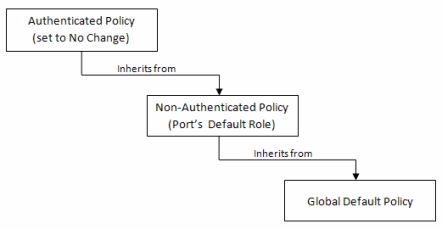
If the authenticated policy's VLAN and CoS are set to "No Change," then the VLAN and CoS settings for the port's default role is used. If the port's default role does not specify the VLAN and CoS, then the global default policy (specified via the ExtremeWireless Assistant) is used. (In wireless controller terminology, a VNS port's default role is the VNS's default policy.)
It is important to note that the Policy tab does not support "No Change" rules (filter set). If any policy's rules (filter set) are set to "No Change," then the Policy tab is not able to manage the device until the policy containing the "No Change" configuration is removed.
Configuring RADIUS Servers
When configuring RADIUS authentication and accounting servers, keep in mind the following differences:
- The "Number of Retries" and "Timeout Duration" settings for RADIUS authentication servers are configured on a per-server basis for wireless controller devices. For all other devices, these settings are global to all RADIUS servers, and are specified per device as client defaults.
- The "Update Interval" setting for RADIUS accounting servers is configured on a per-server basis for wireless controller devices. For all other devices, this setting is global to all RADIUS servers, and is specified per device as client defaults.
- For wireless controller devices, the Client Status (Enabled or Disabled) is automatically set to Enabled when a RADIUS server exists and Disabled when it does not. For all other devices, Client Status is configured for each device, enabling you to enable and disable communication between the device and the RADIUS servers.
- If Strict Mode is enabled, up to three RADIUS servers are automatically associated to each WLAN service. If Strict Mode is disabled, RADIUS servers must be manually added to a WLAN service via the ExtremeWireless Assistant.
Other Considerations
- The wireless controller does not support authentication configuration.
- The wireless controller does not support viewing user sessions in the Port Usage tabs.
- The wireless controller must have any VLANs used in a Role's default action already defined on the device and configured with an egress port. If the Policy tab enforces a domain configuration to the wireless controller using a VLAN that does not have an egress port specified, enforce fails.