Introduction
While ExtremeCloud IQ Site Engine provides you with visibility into your entire network, there are circumstances that may result in ExtremeCloud IQ Site Engine becoming impaired or unresponsive. These include:
- The ExtremeCloud IQ Site Engine server becomes unresponsive or a virtual machine becomes isolated from the management network.
- Applications become unresponsive.
- A Hyper-V host fails due to a power or hardware failure.
The ExtremeCloud IQ Site Engine failover solution on Microsoft Hyper-V 2025 uses Windows Server Failover Clustering (WSFC), which provides a recovery plan in the event of a host power or hardware failure (such as a hard disk, memory, or CPU failure), an application failure, or if a virtual machine loses connectivity with the management network. With WSFC on Hyper-V 2025, you can monitor your ExtremeCloud IQ Site Engine servers, services, and applications. In addition, VMs can be reinitiated in the event of server and service failures without manual intervention.
Hyper-V with WSFC does not require user intervention or reliance on database backups, which can be hours or days old. Hyper-V with WSFC does not require a secondary ExtremeCloud IQ Site Engine server to be separately maintained and kept up-to-date, and does not rely on administrators or other networks that monitor for either the detection or recovery of host failures.
Hyper-V with WSFC falls under the Active/Cold-Standby category. Failover Clustering enables you to pool physical Hyper-V hosts into a logical group called a failover cluster. In a failover cluster, one instance of ExtremeCloud IQ Site Engine is deployed in the cluster. In the event of a failure to one Hyper-V host, this instance is live migrated to another available Hyper-V host in the cluster. The ExtremeCloud IQ Site Engine user interface typically takes about 10 minutes to restart.
| NOTE: |
Hyper-V Failover Clustering is supported on Windows Server 2025. The ExtremeCloud IQ Site Engine VM must be configured on shared cluster storage and added to a failover cluster role. |
|---|
Protecting Against Server Failure and Virtual Machine Isolation
ExtremeCloud IQ Site Engine's servers are organized into clusters on Hyper-V 2025. The cluster nodes running Hyper-V are monitored by the WSFC service. The WSFC service monitors the health of nodes in a cluster by sending heartbeat requests to each node. If a node does not respond within a configured interval, the WSFC service identifies the failure and restarts the VM on a new node within the cluster. After the VM starts on another node, normal ExtremeCloud IQ Site Engine server operation resumes.
Hyper-V live migration also protects virtual machines against network isolation by migrating the VMs if the host becomes isolated on the management network, or loses connectivity on any of the management or data storage interfaces. Additionally, with the ExtremeCloud IQ Site Engine Hyper-V Failover Clustering solution the virtual machine is recovered on another node in the event that certain mission-critical services (such as database and server services) have stopped and not restarted under normal automated operating and recovery procedures.
Protecting Against Application Failure
ExtremeCloud IQ Site Engine uses a Watchdog Service (a Java process) to start the database, server processes, and services in the engine. If the database or server processes fail, the Watchdog Service monitors the status and restarts any that fail without the need for user intervention. Application monitoring resets the ExtremeCloud IQ Site Engine virtual machines based on health monitoring policies configured in the failover cluster role.
If the services fail to recover after multiple restarts, a VM restart might be the recommended solution. VM restart is not a function of the ExtremeCloud IQ Site Engine Watchdog Service. The Watchdog Service sends a heartbeat signal, and if a monitored service or process fails to recover after three service restarts, then the application might required a VM restart.
| NOTE: | If the watchdog service stops unexpectedly, application monitoring stops. |
|---|
Logs for the Watchdog Service and application monitoring functionality can be found in the following locations:
<installation directory>/appdata/logs/watchdog.out- Contains logs of starting/stopping watchdog process.<installation directory>/appdata/logs/watchdog.log- Contains runtime watchdog logs.<installation directory>/appdata/logs/appmonitor.out- Contains logs of starting/stopping app monitor.<installation directory>/appdata/logs/appmonitor.log- Contains runtime app monitor logs.
By default appmonitor.log and watchdog.log contain only informational logs. To get debug level logs, change the log4j configuration. To set the log level from info to debug for these logs:
- Stop the Watchdog Service by entering
service nswatchdog stopin the ExtremeCloud IQ Site Engine engine command line. - Navigate to the
<installation directory>/services/directory. The properties files, watchdog.log4j.properties and appmonitor.log4j.properties contain the log configuration for watchdog service and Application monitor program respectively. - Open the
watchdog.log4j.propertiesfile and change info to debug in the following lines:- log4j.category.com.enterasys.netsight.watchdog=info
- log4j.category.com.enterasys.netsight.watchdog.NetSightProcessController=info
- log4j.category.com.enterasys.netsight.watchdog.NetSightDbProcessController=info
- Open the
appmonitor.log4j.propertiesfile and change info to debug in the following lines:- log4j.category.com.enterasys.netsight.watchdog=info
- log4j.category.com.enterasys.netsight.watchdog.VMGuestAppMonitor=info
- Start the Watchdog Service by entering
service nswatchdog startin the ExtremeCloud IQ Site Engine engine command line.
Hardware Configuration
A typical Hyper-V failover cluster configuration for ExtremeCloud IQ Site Engine consists of two or more Windows Server 2025 nodes with Hyper-V role enabled.
In this configuration, both Hyper-V hosts have the Hyper-V role installed and are configured as nodes in a Windows Server Failover Cluster. Both nodes share access to cluster-managed storage. Virtual machine disk (VHDX) files must be stored on shared storage that is accessible to all cluster nodes. The shared storage should be housed on a separate network to avoid network outages.
| NOTE: | The ExtremeCloud IQ Site Engine Failover Clustering solution requires that both hosts are
configured as part of a Windows Server Failover Cluster, and have Hyper-V and Failover
Clustering roles installed. All nodes, the cluster, and the ExtremeCloud IQ Site Engine VM must be
in sync with the enterprise NTP server. |
|---|
Failover Clustering monitors Hyper-V host availability and restarts failed VMs. Each node in the failover cluster communicates with a cluster heartbeat, which indicates if running as expected. If a heartbeat is not detected from any node within the cluster, the Failover Clustering service takes corrective action. If the VM fails, Failover Clustering attempts to restart the VM on the same node. If restart attempts are unsuccessful, the cluster can fail over the VM to another node. If the node fails, the VMs from that node are live-migrated to other nodes in the cluster.
The shared cluster storage is the persistent storage for the virtual machine. It is where the ExtremeCloud IQ Site Engine server software is installed, the configuration information is kept, and where the database tables are stored. The virtual engine code is executed on the Hyper-V host. When a host fails, the virtual engine execution moves to the other host and all of the data is maintained in the shared storage. This allows the ExtremeCloud IQ Site Engine server to continue functioning without having to restore a database backup.
Configuring Hyper-V Failover Clustering
The following steps outline the process for setting up Windows Server Failover Clustering (WSFC) with Hyper-V 2025 for ExtremeCloud IQ Site Engine.
-
Prepare the Infrastructure:
-
Install Windows Server 2025 on both cluster nodes.
-
Install the Hyper-V role on both nodes.
- Install the Failover Clustering role on both nodes.
-
Configure networking with redundant network adapters for cluster heartbeat traffic.
-
Set up shared storage (iSCSI SAN, vSAN, or other shared storage solution) accessible to both nodes.
- Ensure all nodes have static IP addresses and are synchronized with an NTP server.
-
- Create the Failover Cluster:
- Open Failover Cluster Manager on one of the cluster nodes.
-
Select Create Cluster from the Actions pane.
- Follow the Create Cluster wizard to add both nodes.
- Configure cluster networks, quorum settings, and storage.
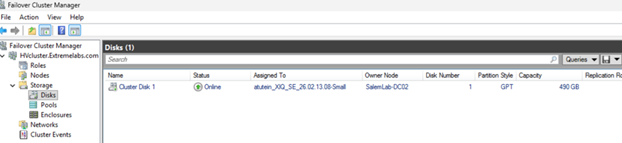
- Add the shared cluster storage as a cluster disk resource.
- Configure the Shared Cluster Storage:
- Connect the shared storage (iSCSI, vSAN, or similar) to both Hyper-V hosts.
- Initialize and format the shared storage disk using Disk Management on both nodes.
- In Failover Cluster Manager, add the disk as a cluster resource.
The shared storage will be used for virtual machine VHDX files and cluster-related data.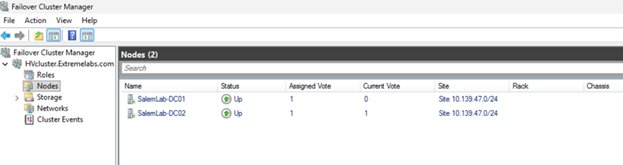
Create Virtual Machines on Shared Storage:
-
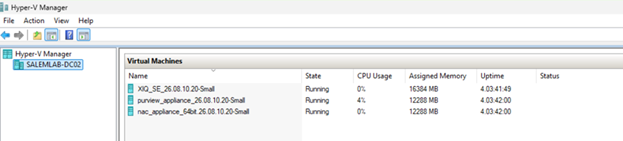
From one of the Hyper-V hosts, open Hyper-V Manager.
-
Create a new virtual machine for ExtremeCloud IQ Site Engine.
-
Configure the VM to store its VHDX file on the shared cluster storage.
-
Install ExtremeCloud IQ Site Engine on the VM.
-
Repeat for additional appliances (Access Control Engine, Application Analytics Engine, etc.) if needed.
Add Virtual Machines to the Failover Cluster:
-
Open Failover Cluster Manager.
-
Navigate to Roles and select Add a clustered role.
-
Select Virtual Machine as the role type.
- Select the ExtremeCloud IQ Site Engine VM to add to the cluster.
-
Complete the wizard to add the VM as a cluster role resource
-
Repeat for each appliance VM if running multiple appliances.

Configure the Failover and High Availability Settings:
-
In Failover Cluster Manager, right-click the VM role and select Properties.
-
Configure failover settings such as preferred node owners and failover thresholds.
-
Configure the VM to automatically restart if it fails.
-
Configure the health monitoring and recovery policies as needed.
-
Apply the settings.
Test the Live Migration and Failover
-
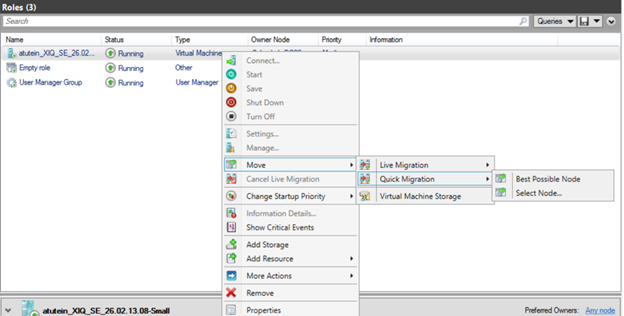
In Failover Cluster Manager, select the ExtremeCloud IQ Site Engine VM role.
-
Right click and select Move > Select Node to initiate a live migration to another node.
-
Monitor the live migration process. The VM should migrate with minimal service interruption.
-
Test the automatic failover by intentionally failing a node or network connection. Observe the VM recovery.
-
Verify that the ExtremeCloud IQ Site Engine services resume normally after a failover.
ExtremeCloud IQ Site Engine Upgrade Process
To upgrade an ExtremeCloud IQ Site Engine server on which Hyper-V Failover Clustering is currently configured, use the following instructions:
- Open Failover Cluster Manager.
- Select the cluster and navigate to Roles.
- Right-click the ExtremeCloud IQ Site Engine VM role and select Take Offline to disable the failover protection during the upgrade.
- Upgrade ExtremeCloud IQ Site Engine following the standard upgrade procedures.
- After the upgrade is complete, return to Failover Cluster Manager.
- Right-click the VM role and select Bring Online to enable Failover Clustering.
The ExtremeCloud IQ Site Engine user interface typically takes approximately 10 minutes to become available after the VM is brought online.
For information on related help topics:
High Availability Support for ExtremeCloud IQ Site Engine with vSphere Version 6.0
High Availability Support for ExtremeCloud IQ Site Engine with vSphere Version 6.5